When your Lenovo laptop suddenly loses sound on Windows 11—whether you hear no audio at all, sound cuts out randomly, or apps like YouTube, Zoom, or Spotify won't play audio—it can disrupt work, communication, and entertainment. Audio issues commonly stem from incorrect settings, muted devices, outdated audio drivers, Windows updates, or hardware malfunctions. This guide provides all the effective methods to restore audio on your Lenovo laptop.
Check Basic Audio Settings
Ensure Your Laptop Isn't Muted
Click the sound icon on the taskbar
Make sure Output Volume is not muted
Slide the volume bar to 50% or higher
Check App Volume
Sometimes audio is muted only for one app.
Press Win + I → System → Sound
Scroll down to Volume Mixer
Ensure volume is enabled for: System Sounds, Your browsers, Zoom/Teams, or Media players
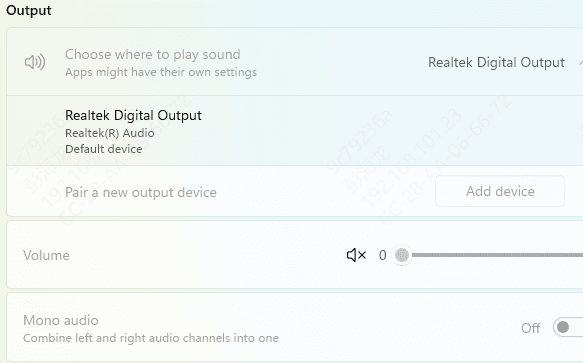
Select the Correct Playback Device
If Windows 11 outputs audio to the wrong device (Bluetooth headphones, HDMI monitor, etc.), you'll hear nothing.
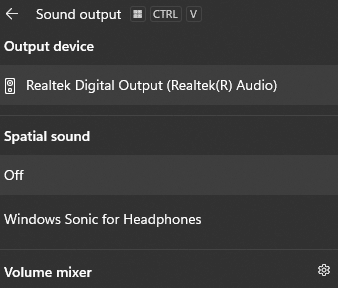
Click the sound icon on the taskbar
Under Output, select:
Speakers (Realtek Audio)
Headphones (if connected)
If the wrong device is selected, switch to your laptop's internal speakers
Disconnect Bluetooth Devices
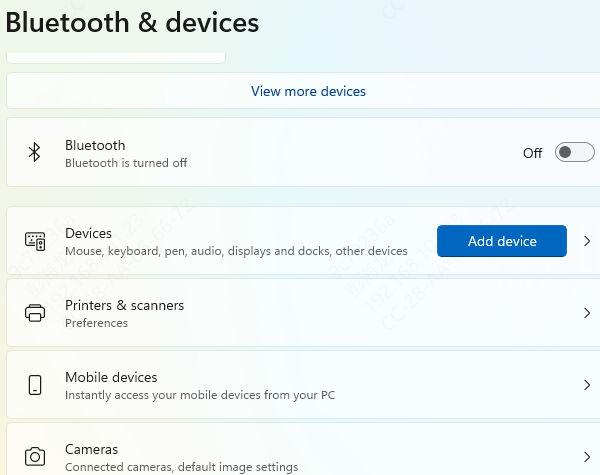
Windows may route your audio to a paired Bluetooth device.
Go to Settings → Bluetooth & devices
Turn Bluetooth Off
Test audio again
If sound comes back, a Bluetooth audio device was taking over
Restart Windows Audio Services
Critical audio services may stop working.
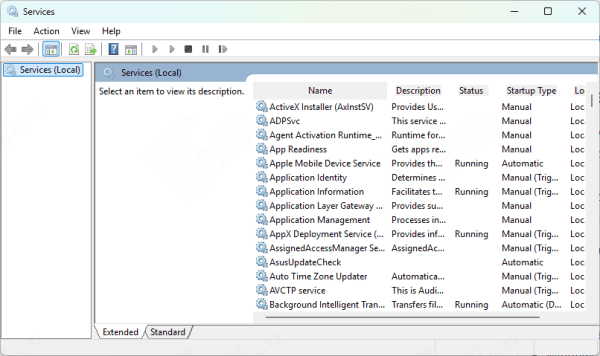
Press Win + R, type services.msc, hit Enter
Find these services:
Windows Audio
Windows Audio Endpoint Builder
Right-click → Restart
Set Startup Type to Automatic
Test sound again
Update Drivers with Driver Talent X (Recommended Fix)
Outdated, missing, or corrupted sound drivers are one of the top reasons Lenovo laptops lose audio on Windows 11. Driver Talent X automatically detects damaged system drivers and installs the correct Lenovo-compatible versions.
Download and Install Driver Talent X
Click the Download button
Run the installer
Follow on-screen instructions to install the app
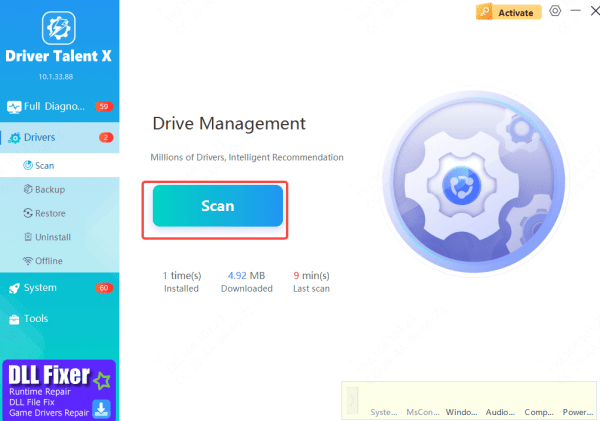
Run a Full Driver Scan
Open Driver Talent X
Go to Drivers → Scan
The tool will check: Realtek/Intel audio drivers, Chipset & system controllers, Bluetooth audio dependencies, and USB audio drivers
Apply Driver Fixes
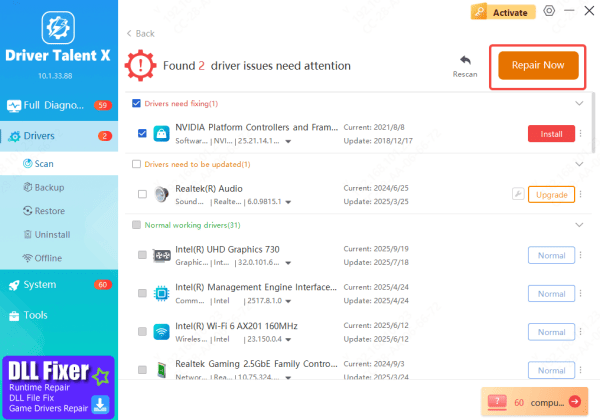
After the scan, select Repair Now/Update
Driver Talent X will automatically install the correct audio drivers for your Lenovo model
Restart Your Laptop
Reboot to load newly installed drivers—this often restores sound immediately
Run the Windows Troubleshooter
Windows 11 includes built-in repair tools.
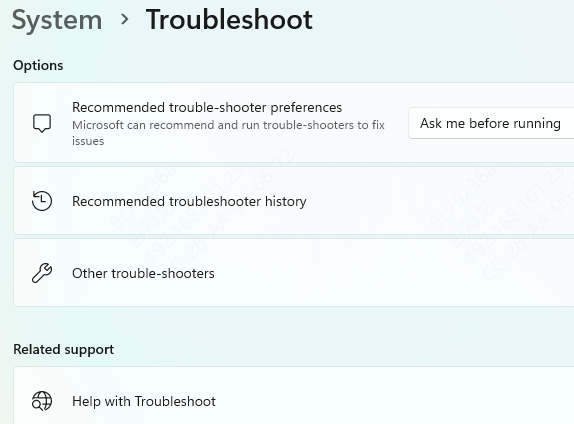
Open Settings → System → Troubleshoot
Click Other troubleshooters
Run:
Playing Audio
Hardware and Devices
Follow on-screen recommendations
Check Windows Update Issues
Sometimes updates fix audio issues; other times they break audio.
Install Latest Updates
Go to Settings → Windows Update
Click Check for updates
Install everything available
Restart
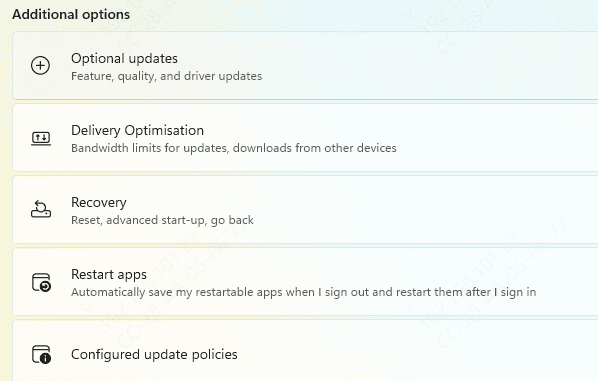
Roll Back Problematic Updates
If audio stopped working after an update:
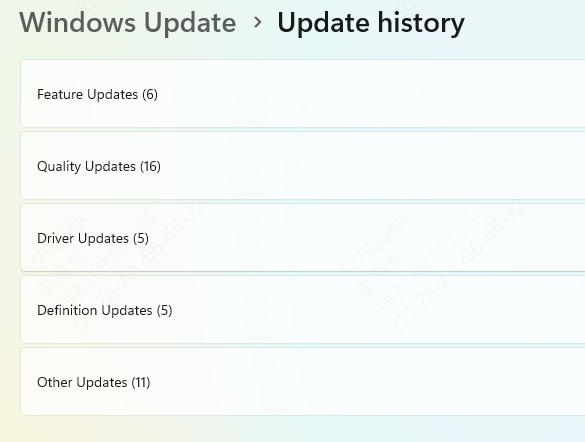
Go to Windows Update → Update history
Select Uninstall updates
Remove the latest update
Restart your Lenovo laptop
Check Hardware
Test with Headphones
If sound works with headphones → speaker hardware may be damaged
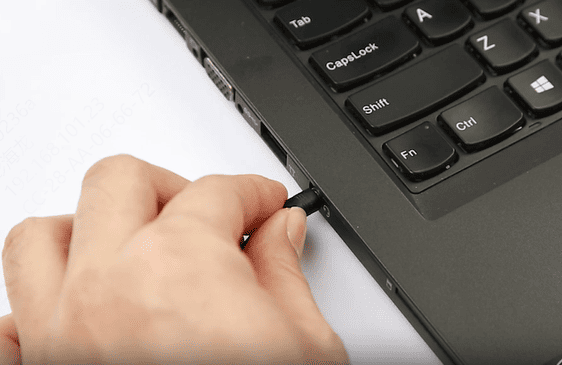
Inspect the Headphone Jack
A stuck headphone sensor can disable speakers
Plug in headphones
Remove slowly
Repeat 2–3 times
External USB Speakers
If they work, internal speakers may be faulty
If you suspect hardware failure, contact Lenovo support
Causes of Lenovo Laptop Sound Problems
Audio output device disabled
Incorrect playback device selected
Muted system or app volume
Corrupted Realtek/Intel audio drivers
Windows 11 updates causing conflicts
Bluetooth devices hijacking the audio output
Disabled audio services
Hardware faults (headphone jack, speakers, motherboard)
Conclusion
Lenovo laptop sound problems on Windows 11 are usually caused by incorrect settings, muted output devices, or corrupted audio drivers. By checking audio settings, restarting services, updating or reinstalling drivers, and running Windows troubleshooters, you can usually restore full audio functionality quickly. If internal speakers or audio hardware are faulty, external devices or professional repair may be required.









