
No sound on your Lenovo laptop running Windows 11 is a common issue that many users face, especially after system updates, driver conflicts, or hardware changes. This guide provides step-by-step solutions, starting with simple fixes and progressing to advanced ones. Most issues can be resolved by updating or reinstalling drivers using official Lenovo tools.
Quick Checks Before Troubleshooting
Ensure volume is up and not muted (check the taskbar icon and Fn + volume keys)
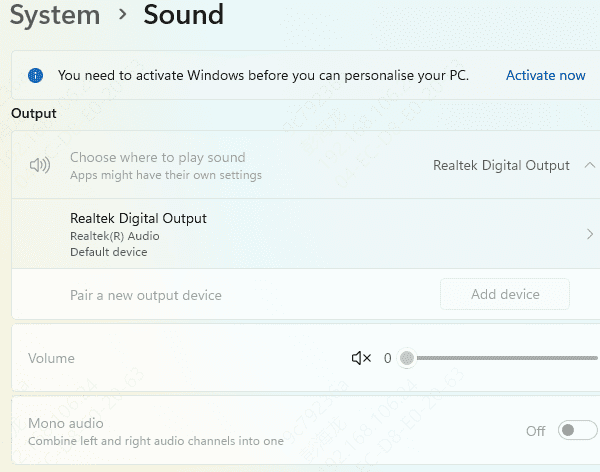
Select the correct output device: Right-click the sound icon > Open Sound settings > Choose your speakers under Output
Test with headphones or external speakers to isolate if it's laptop speakers only.
Restart your laptop
Update Drivers with Driver Talent X
Outdated, missing, or corrupted audio drivers are among the most common reasons for no-sound problems on Lenovo laptops running Windows 11. Driver Talent X offers an efficient solution by automatically detecting and installing the appropriate Lenovo-compatible audio drivers, helping you save time while maintaining system stability.
Download and Install Driver Talent X
Click the Download button to obtain the installer
Launch the setup file and follow the on-screen prompts to complete the installation
Run a Complete Driver Scan
Launch Driver Talent X
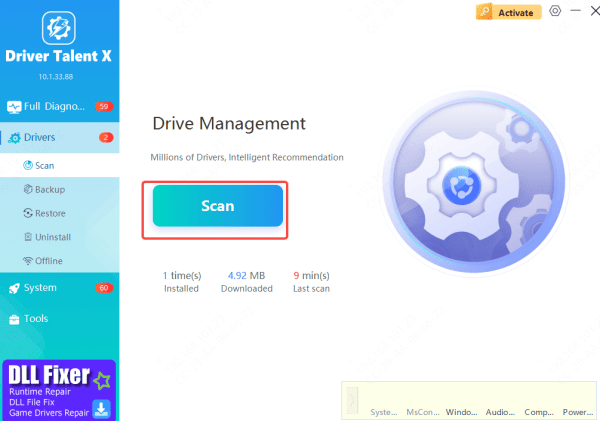
Go to the Drivers section, select Scan, and click the Scan button
Update or Repair the Drivers
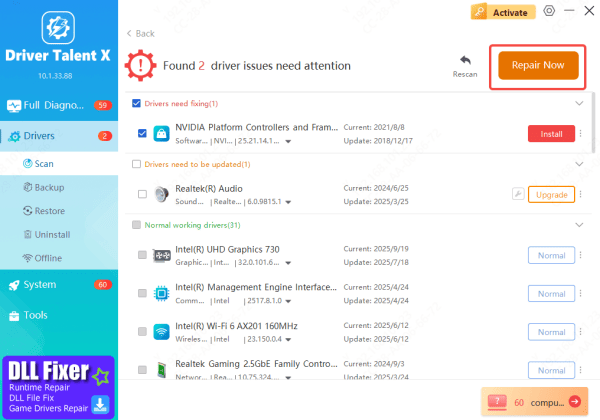
Once the scan finishes, click Repair Now or Update
Driver Talent X will automatically download and install the correct audio drivers tailored for your Lenovo laptop
Restart Your Laptop
Reboot your computer to activate the newly installed drivers
After the restart, your sound should be fully restored, fixing the majority of audio issues on Windows
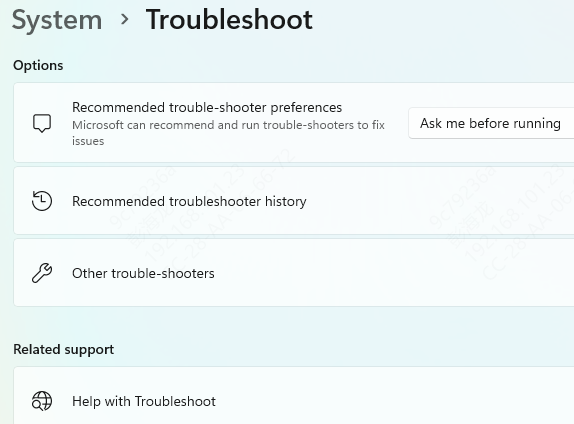
Run the Built-in Windows Audio Troubleshooter
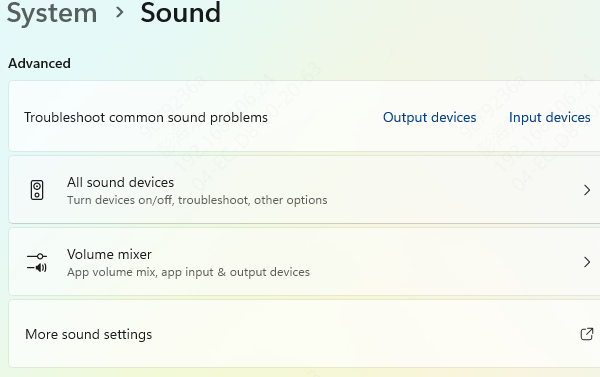
Go to Settings > System > Sound
Scroll down and click Troubleshoot (or Troubleshoot common sound problems)
Follow the on-screen instructions—it will detect and repair problems like disabled devices or driver errors
Restart Audio Services
Audio services can crash or stop, causing no sound.
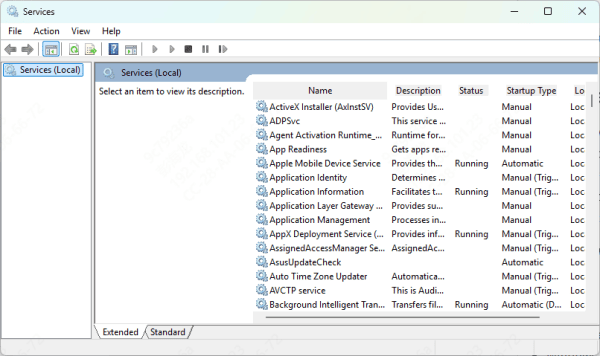
Press Win + R, type services.msc, and hit Enter
Find Windows Audio and Windows Audio Endpoint Builder
Right-click each > Restart
Double-click each > Set Startup type to Automatic > Apply
Restart your laptop and test sound
Reinstall Audio Drivers via Lenovo Vantage
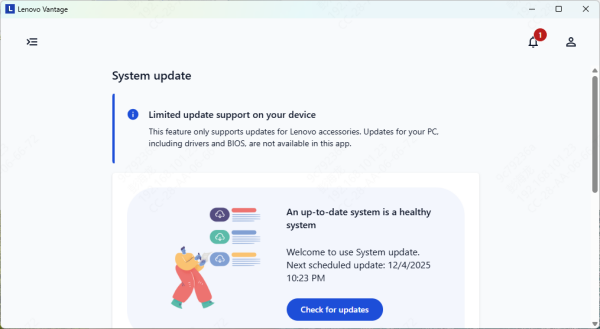
Open Lenovo Vantage
Go to Device > System Update (or Check for updates)
Scan for updates—it will detect and install the latest audio drivers (usually Realtek)
Restart after installation
Manually Download and Install Audio Drivers from Lenovo Support
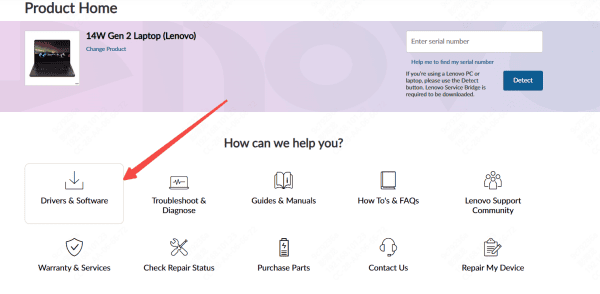
Visit https://support.lenovo.com
Enter your model name, serial number (found on the bottom or in BIOS), or use auto-detect
Go to Drivers & Software > Select Audio or search for "Realtek Audio Driver" for Windows 11
Download the latest version
Run the installer and restart
Update Audio Drivers via Device Manager
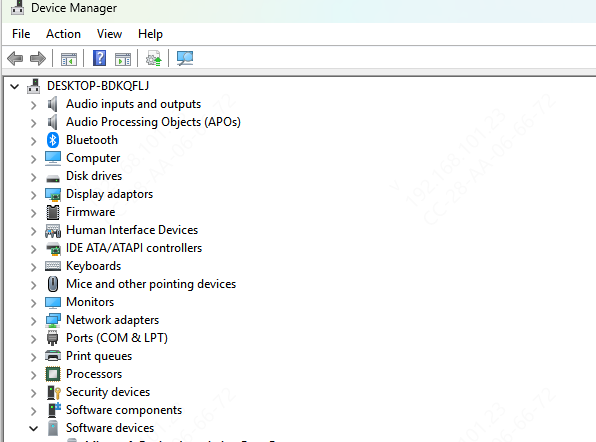
Right-click Start > Device Manager
Expand Sound, video and game controllers
Right-click your audio device (e.g., Realtek Audio) > Update driver > Search automatically
If no update, right-click > Uninstall device (check "Delete the driver software"), restart, and let Windows reinstall
Also expand Audio inputs and outputs and repeat
Show hidden devices: View > Show hidden devices
Windows Update
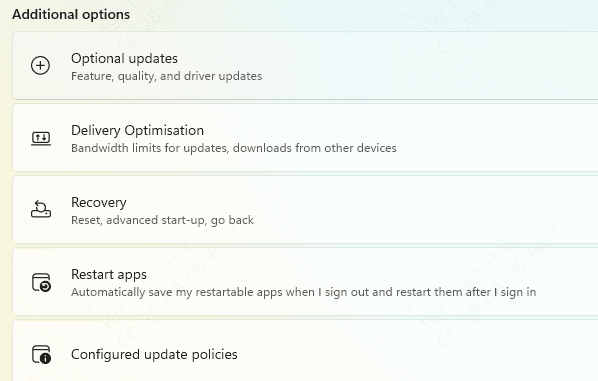
Go to Settings > Windows Update > Check for updates
After updates, click Advanced options > Optional updates and install any audio-related ones
This is convenient but may not always provide Lenovo-specific fixes.
Advanced Fixes: Clean Reinstall and Conflict Resolution
Disable audio enhancements: In Sound settings > Device properties > Uncheck "Enable audio enhancements"
Clean uninstall: Manually uninstall in Device Manager, then reinstall from Lenovo
BIOS check: Restart and enter BIOS (F1/F2/Del) > Ensure audio is enabled (rarely disabled)
For HDMI/external monitor no sound: Set the monitor as default output device
Common Causes of No Sound
Outdated, corrupted, or incompatible audio drivers (especially Realtek after Windows updates)
Conflicts from recent Windows 11 updates (e.g., 2024/2025 patches affecting Realtek drivers)
Audio services not running or stopped
Incorrect sound settings, muted volume, or wrong output device selected
Audio enhancements or third-party software interference
Rarely, BIOS settings disabling audio or hardware faults
Conclusion
No sound on Lenovo laptops with Windows 11 is common, often due to updates, driver conflicts, or settings changes. This guide provides quick fixes: start with basic checks (volume, output device, restart), then use Driver Talent X for automatic driver repair, or try Windows Troubleshooter, restart audio services, Lenovo Vantage, official support site downloads, Device Manager, or Windows Update. Advanced steps include disabling enhancements or BIOS checks.









