
If your Lenovo laptop camera isn't working on Windows 11, you're not alone. Many users encounter this issue due to driver problems, privacy settings, software conflicts, or hardware faults. A malfunctioning camera can disrupt video calls, online classes, and meetings. This guide provides step-by-step solutions to help you restore camera functionality on your Lenovo laptop.
Method 1: Check Camera Privacy Settings
Windows 11 may block camera access if privacy settings are disabled.
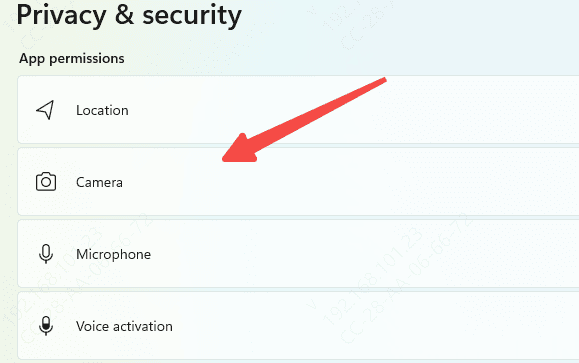
Open Settings → Privacy & security → Camera
Make sure Camera access for your device is turned ON
Enable camera access for apps like Zoom, Teams, and Skype
Restart the camera app to check if it works
Method 2: Enable Camera in Device Manager
The camera may be disabled in Device Manager.
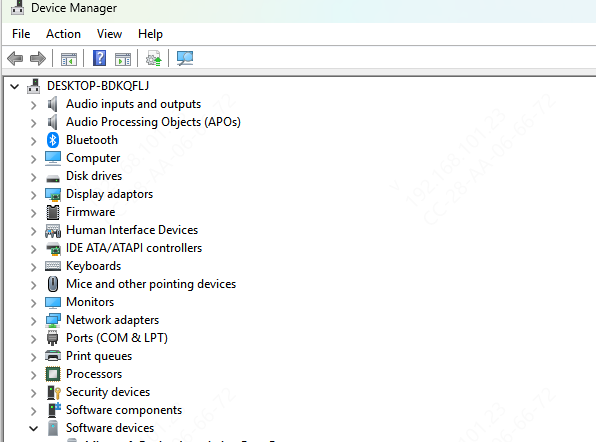
Open Device Manager → Cameras
Right-click your camera and select Enable device if it's disabled
Test the camera again
Method 3: Automatically Update Lenovo Camera Driver
Managing drivers manually can be tedious and sometimes confusing, especially if you're not sure which driver is causing the camera issue. Driver Talent X offers an easy, automated solution to detect, download, and repair any Lenovo driver problems, including your laptop camera driver.
Download and Install Driver Talent X
Click the Download button to get the installer
Run the setup file and follow the on-screen instructions to install the program on your Lenovo laptop
Run a Full System Scan
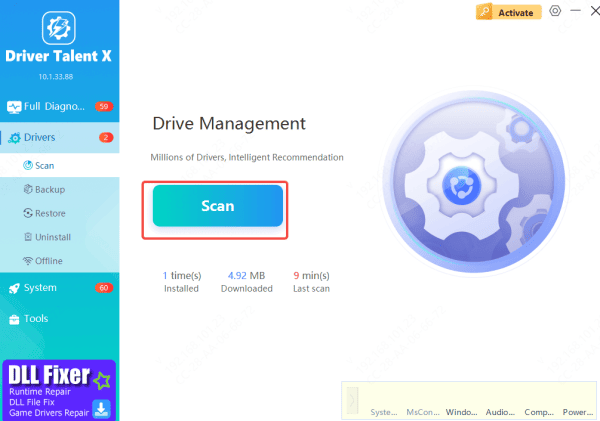
Open Driver Talent X and go to the Drivers section
Click Scan to analyze your system and detect outdated, missing, or corrupted drivers—including the camera driver
Update or Repair Drivers
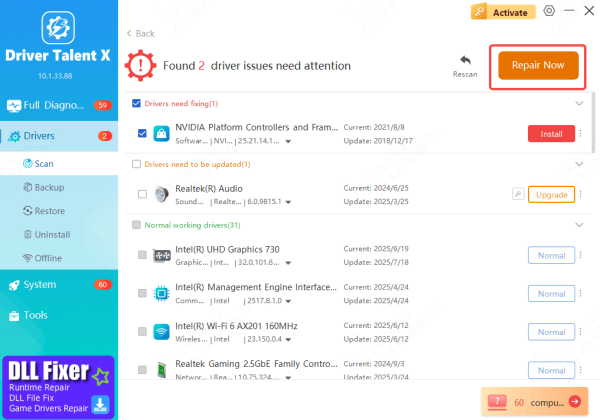
After the scan is complete, Driver Talent X will list all drivers that require attention
Find your Camera / Imaging Device driver, then click Upgrade or Repair Now to automatically download and install the correct Windows 11 driver for your Lenovo laptop
Restart Your Laptop
Once the driver update is finished, restart your laptop
This ensures the new camera drivers are fully applied, helping restore stable and functional camera performance
Method 4: Use Lenovo Vantage to Update Drivers
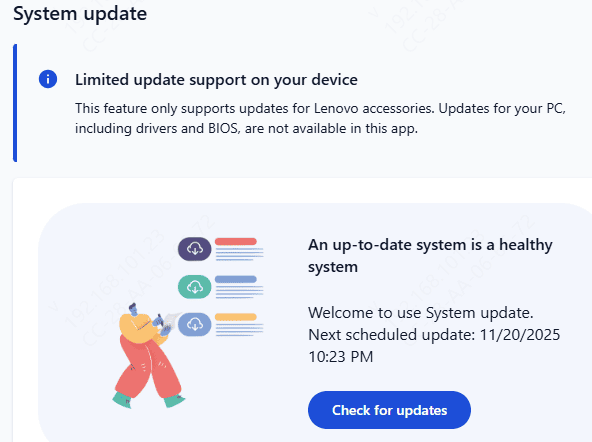
Lenovo Vantage is an official tool for system updates.
Download and install Lenovo Vantage from the Microsoft Store
Open the app → Go to System Update → Click Check for Updates
Install any available camera or driver updates
Restart your laptop and test the camera
Method 5: Install Drivers from the Lenovo Support Website
The official Lenovo Support site is a reliable source for certified drivers, including camera drivers for your Lenovo laptop.
Visit the Lenovo Support website and select PC → Laptops
Enter Your Model or Serial Number
Locate and download the latest Camera / Imaging Device driver. You may also consider updating related drivers like Chipset or USB drivers to ensure full camera functionality
Run the downloaded installer and follow the on-screen instructions
After installation, restart your Lenovo laptop to apply the changes and restore proper camera functionality.
.png "download-driver")
Method 6: Check for Windows Updates
Installing the latest updates ensures your system and drivers are compatible:
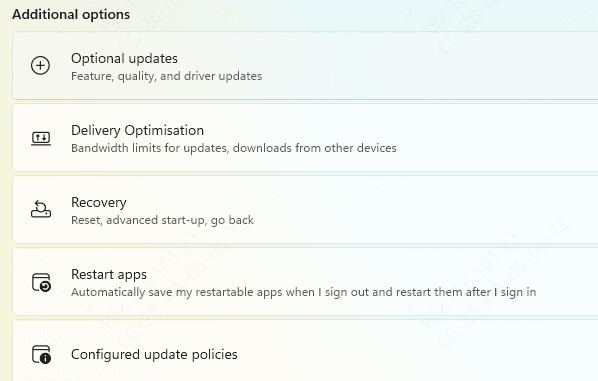
Open Settings → Windows Update
Click Check for updates
Install any pending updates and restart your laptop
Method 7: Check for Conflicting Apps
Some apps may block the camera if running in the background:
Press Ctrl + Shift + Esc to open Task Manager
Look for apps that may be using the camera (Zoom, Teams, OBS)
Close them and try opening the camera again
.png "task-manager")
Method 8: Perform a System Restore or Reset
If all else fails, restoring or resetting Windows 11 may fix the issue:
System Restore: Restore your system to a point when the camera was working
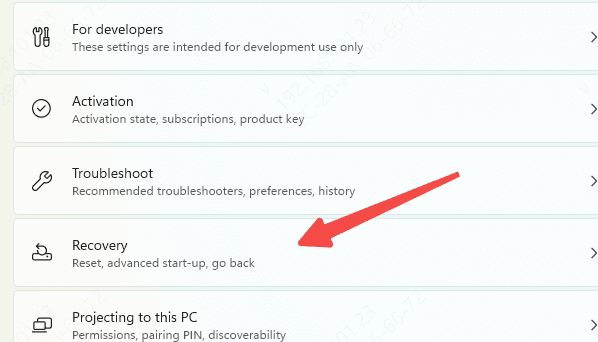
Windows Reset: Go to Settings → System → Recovery → Reset PC, and choose to keep your files
Conclusion
In summary, a Lenovo laptop camera not working on Windows 11 can stem from driver issues, privacy settings, software conflicts, or hardware problems. By following this guide—from checking privacy settings and enabling the camera in Device Manager, to updating drivers with tools like Driver Talent X or Lenovo Vantage, keeping Windows updated, and managing conflicting apps—you can systematically identify and resolve the issue. If necessary, performing a system restore or reset can help restore full camera functionality, ensuring your device is ready for video calls, meetings, and other applications.









